
Squarespace Embed Instructions
This guide shows how to place your Embed360 shop onto a Squarespace page using a Code block. Works on Squarespace 7.1. You can add the shop to any page section or use site-wide Code Injection if you want the shop in the header/footer.
Before you begin
- An Embed360 account connected to your Etsy shop.
- Squarespace 7.1 site with permission to edit pages.
- Business/Commerce plan recommended for custom code. (Personal plans may restrict scripts.)
Step 1 — Copy your Embed360 code
- Log in to your Embed360 dashboard.
- Open your connected shop and click View Embed Code.
- Copy the Supporting Embed Code HTML snippet to your clipboard.

Step 2 — Add the supporting embed code to your website
-
In Squarespace, go to Pages and click on Custom Code and then Code Injection
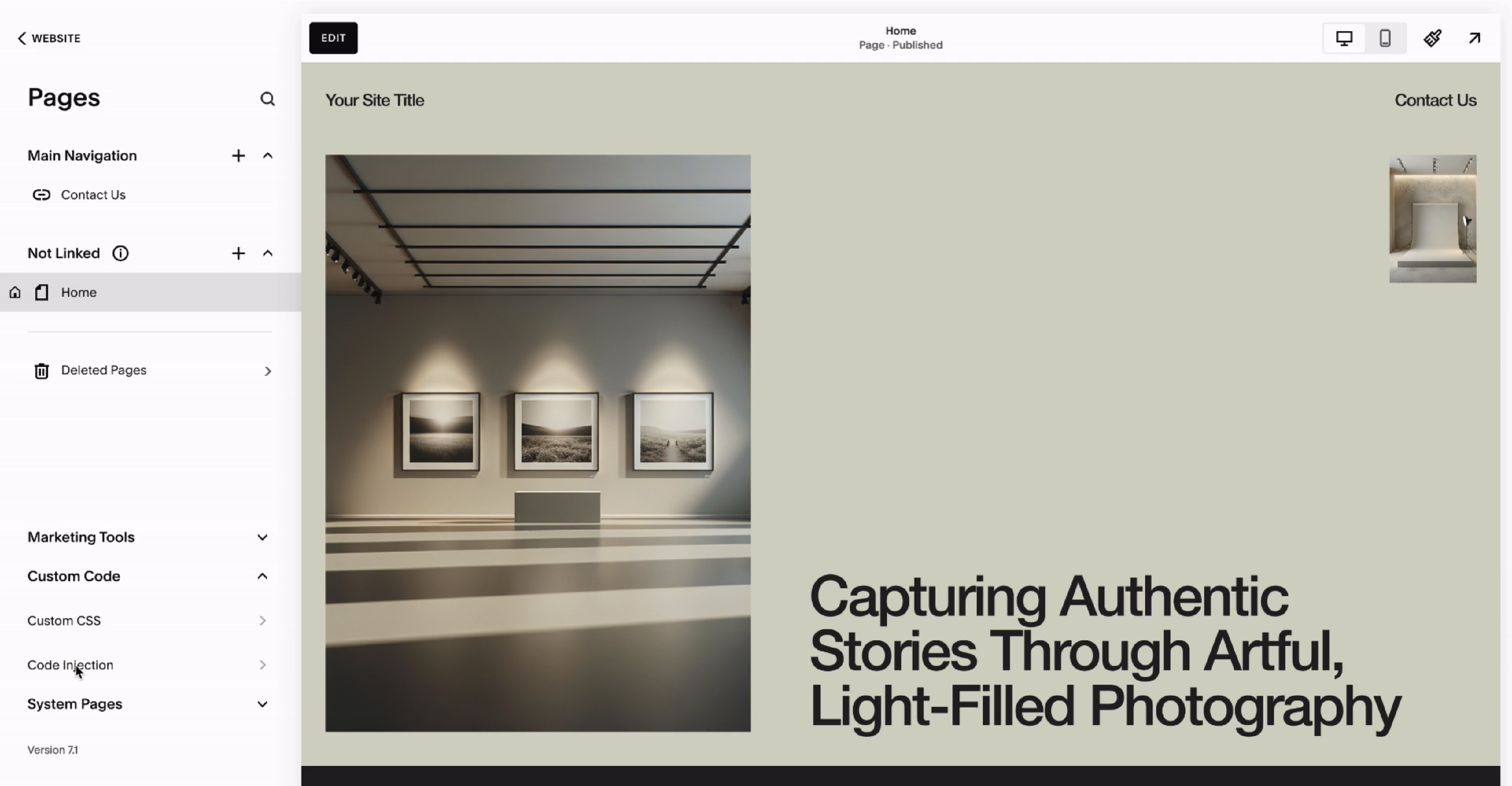
- Paste your Supporting code in the footer section
Step 3 — Import your Shop listings
- Log in to your Embed360 dashboard.
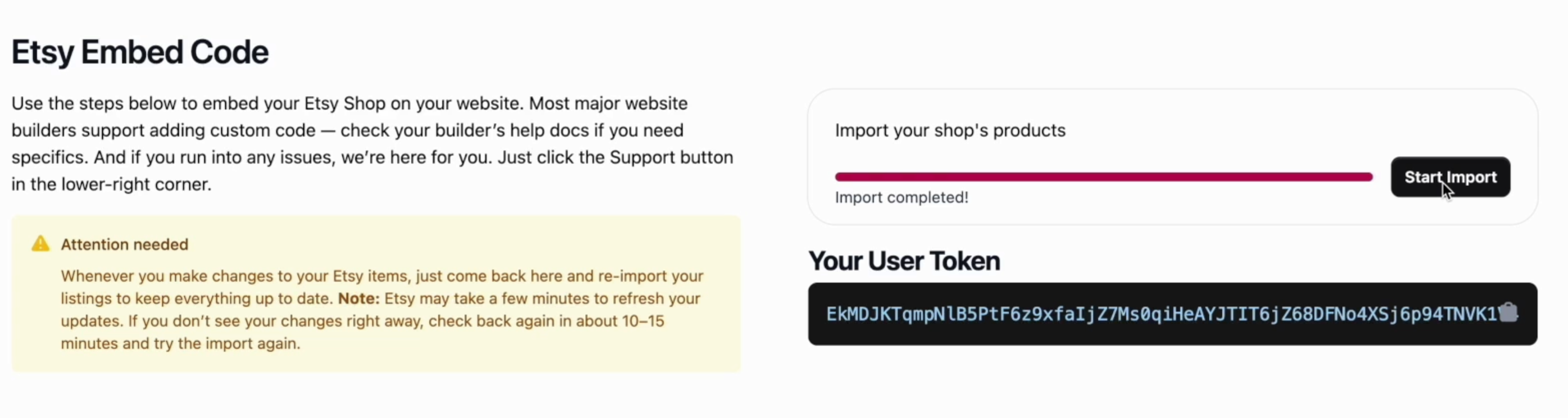
- Navigate to Etsy Embed > Embed Code.
- Click the Start Import Button
- Wait for import to complete
- IMPORTANT: Please read the "Attention Needed" block.
Step 4 — Create shop page and add supporting listings code
- Navigate back to your website
-
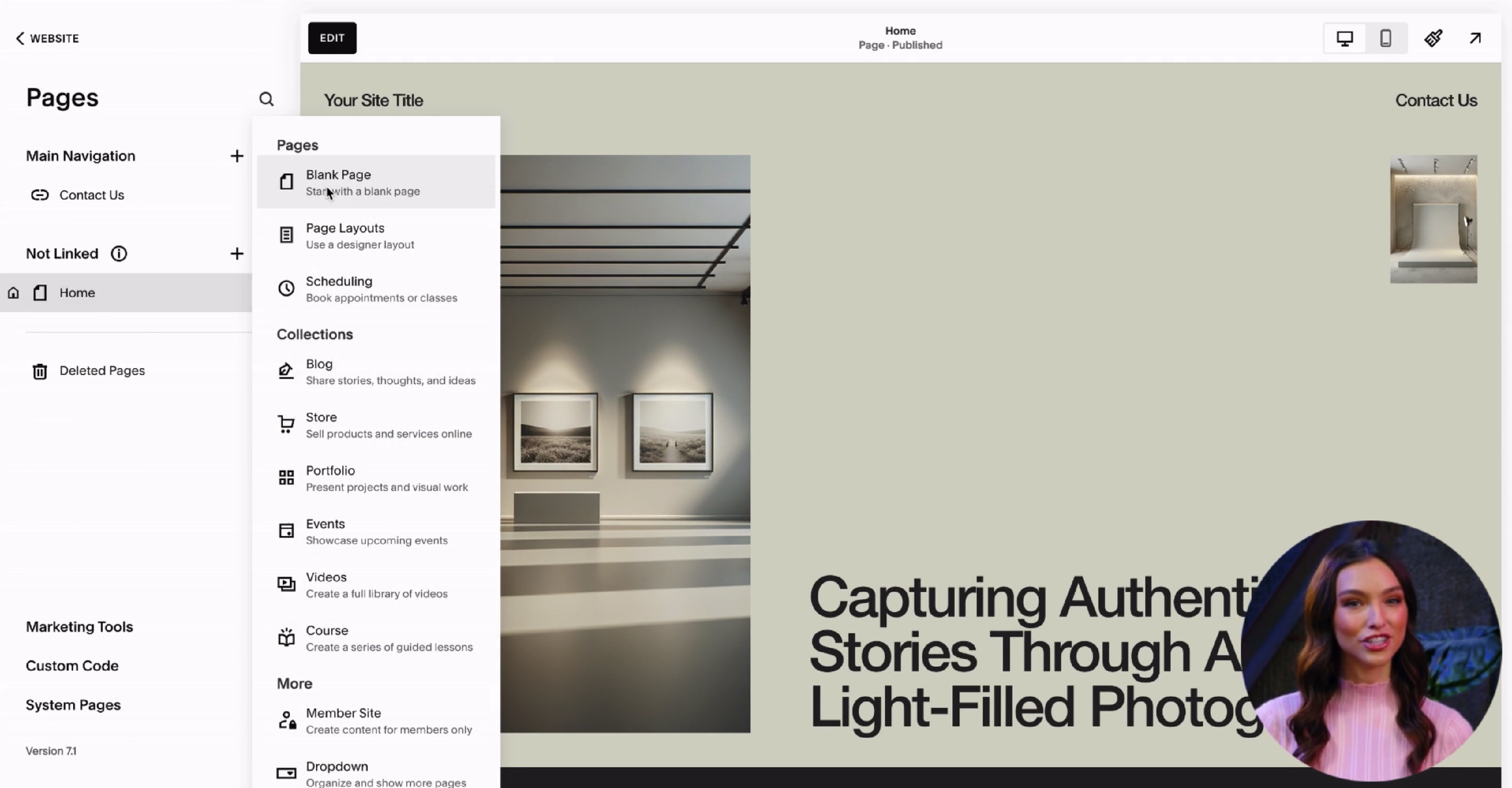
Create a new Page; Under the Main Navigation section, click the “+” (Add Block) button and then create a Blank Page.
-
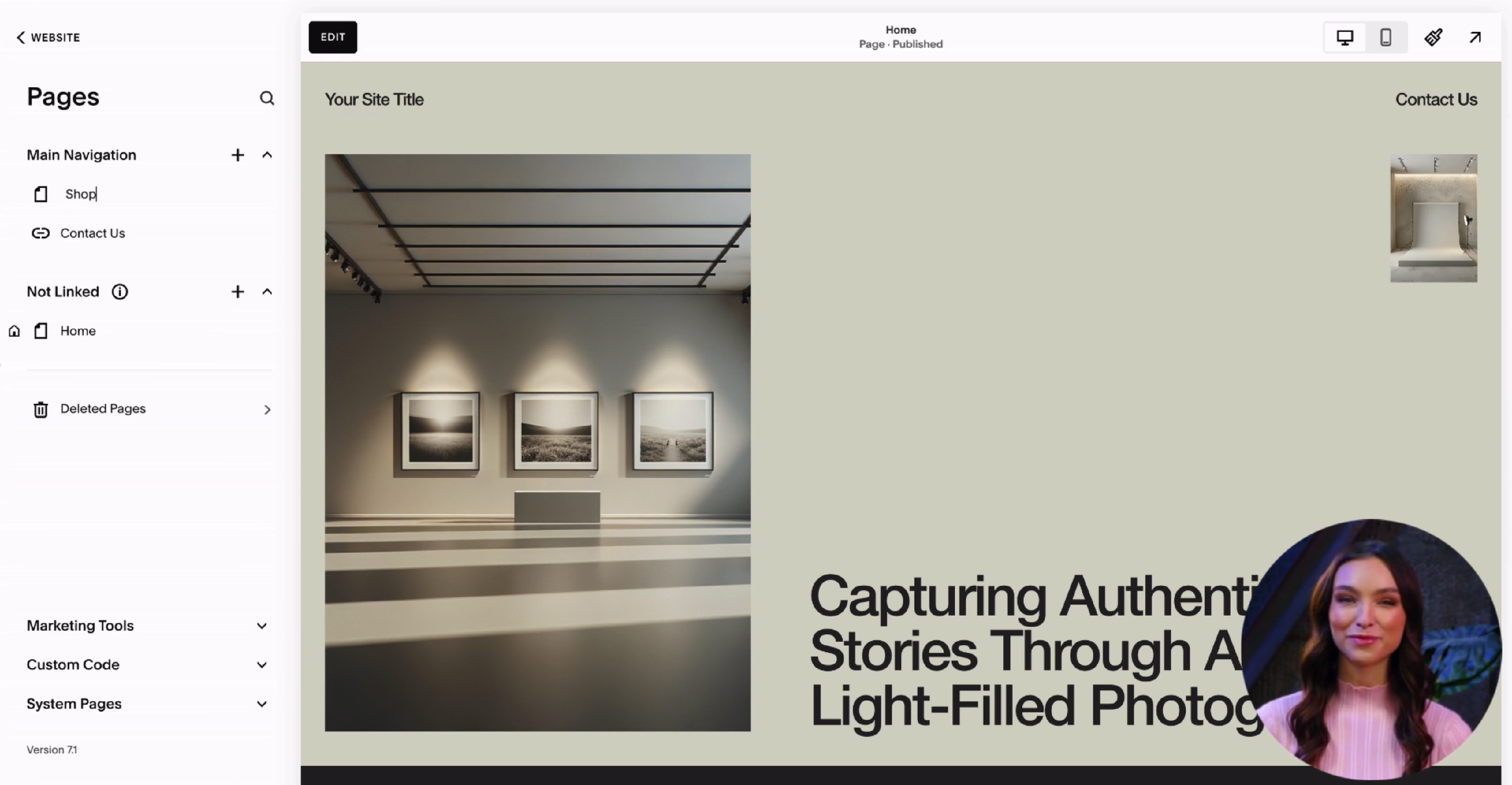
Give the new page a name. We are using "Shop" but can be whatever you wish
- Edit newly created Shop page and click Add Section button
- Click the Add a blank section link in the left column
- Click on the + Add Block button
-
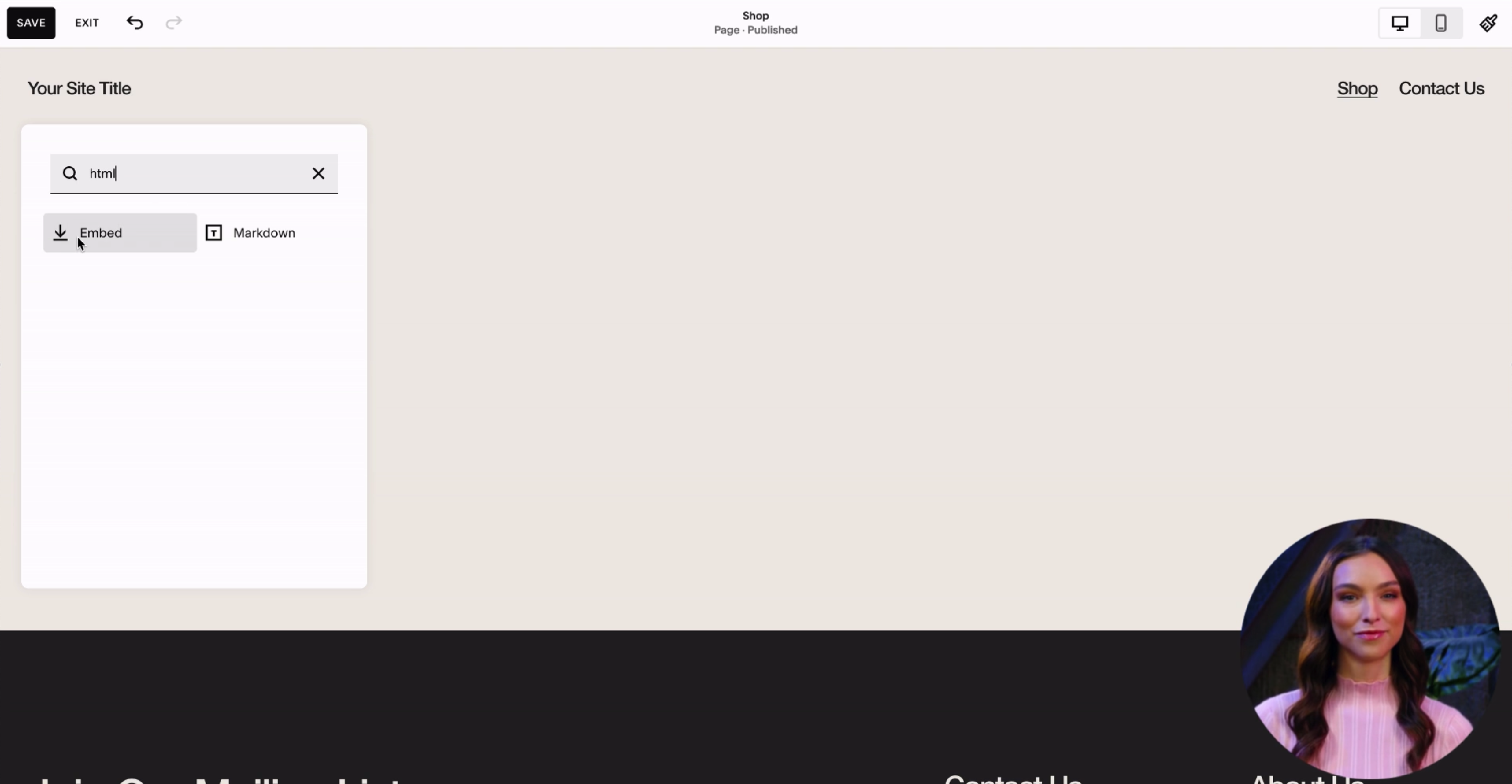
Search for html or embed and add the Embed block
-
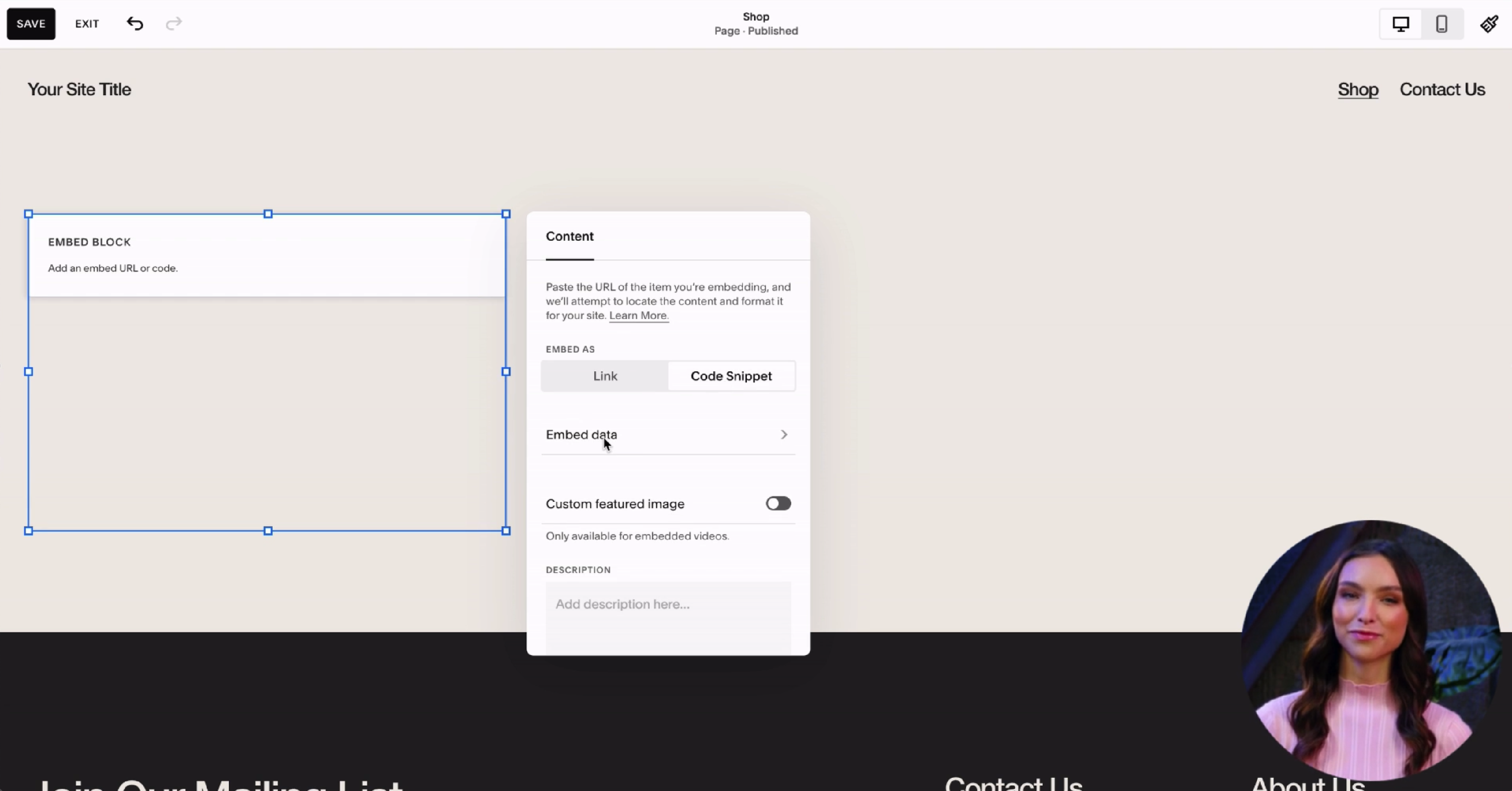
Edit the Embed code block and click Code Snippet tab then click Embed data
-
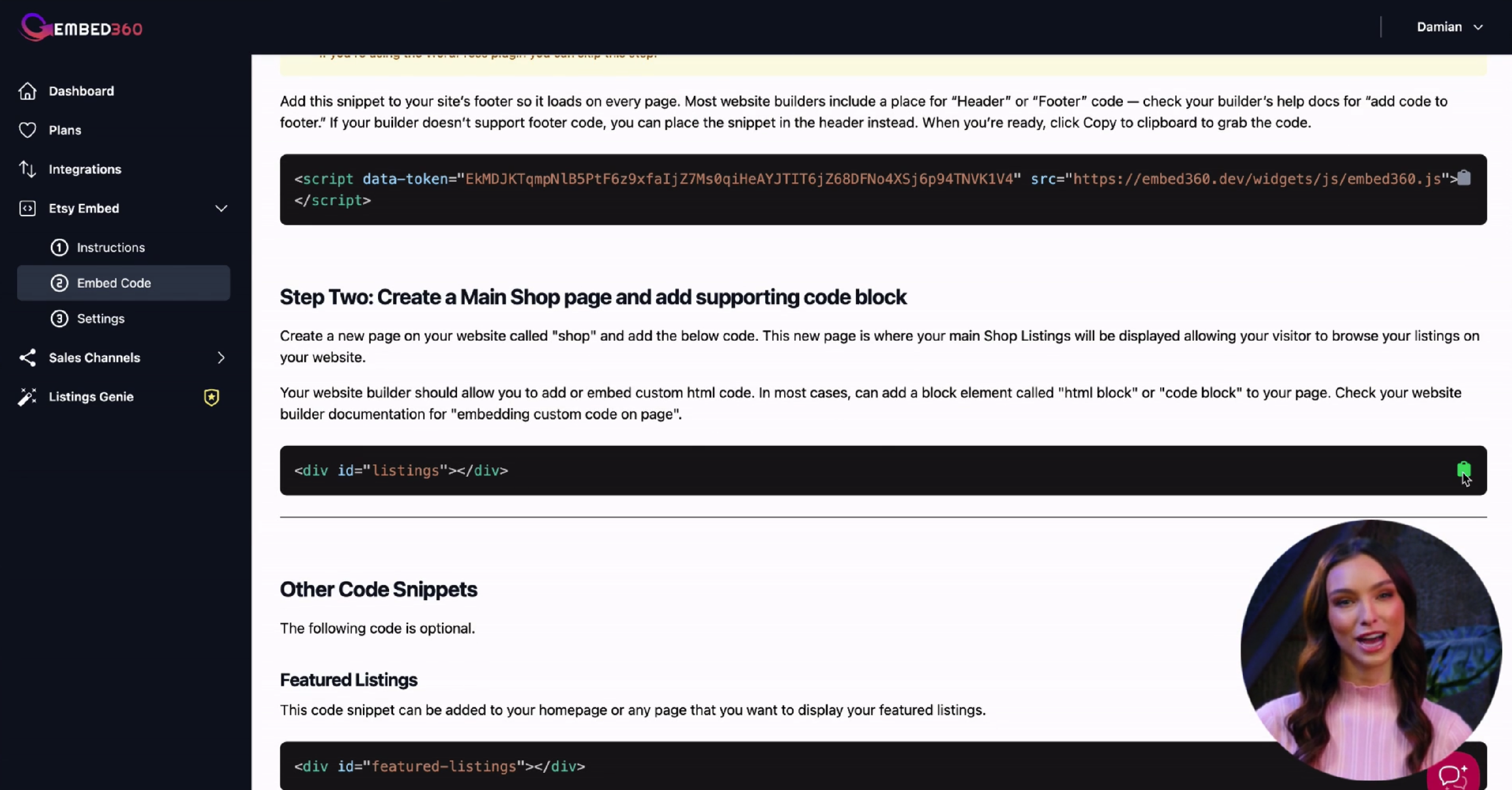
Head back over to Embed360 and copy the Listings embed code
-
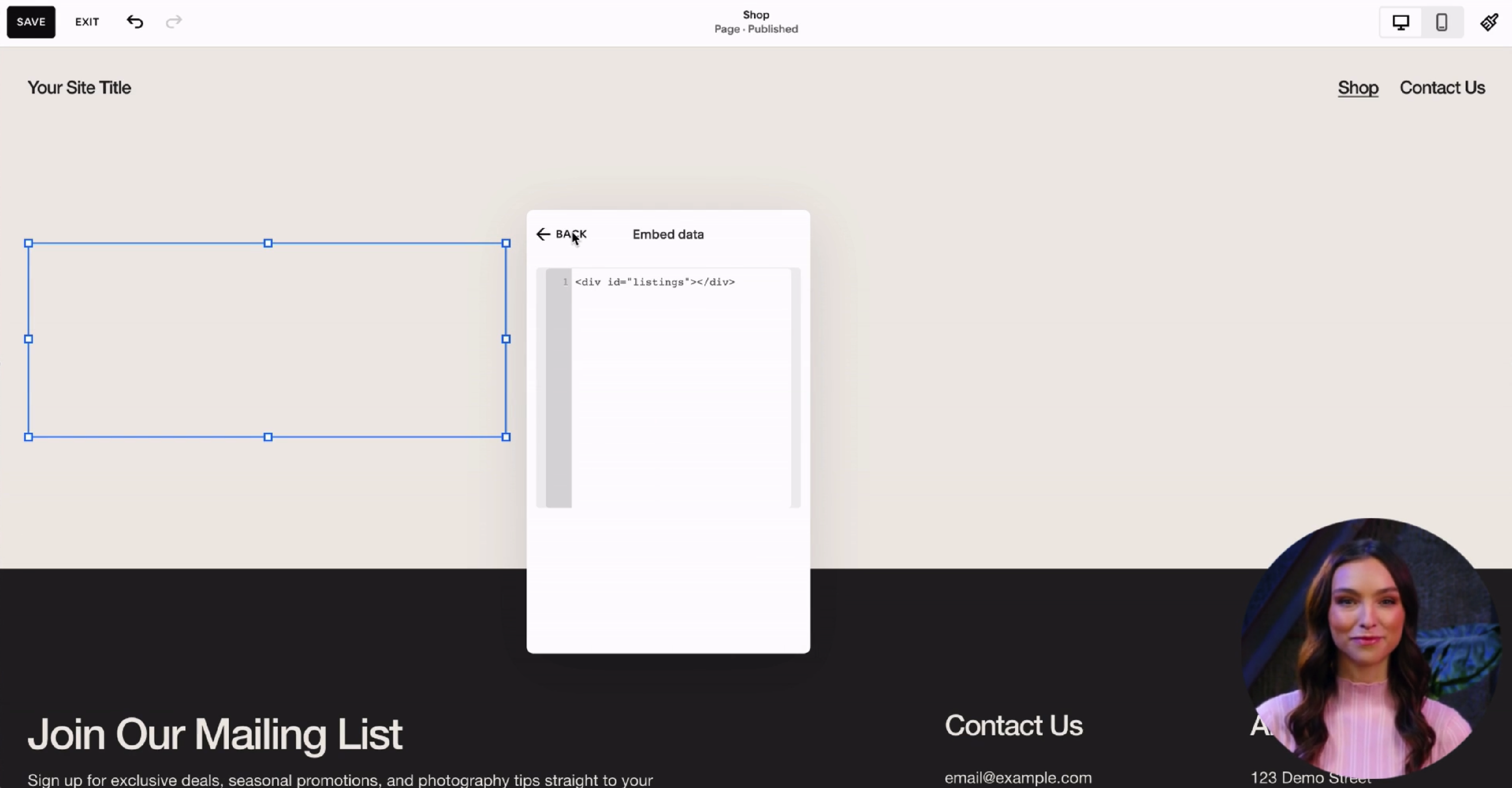
Navigate back to your website and paste the copied listings code into the Embed data block. Then click the back button
-
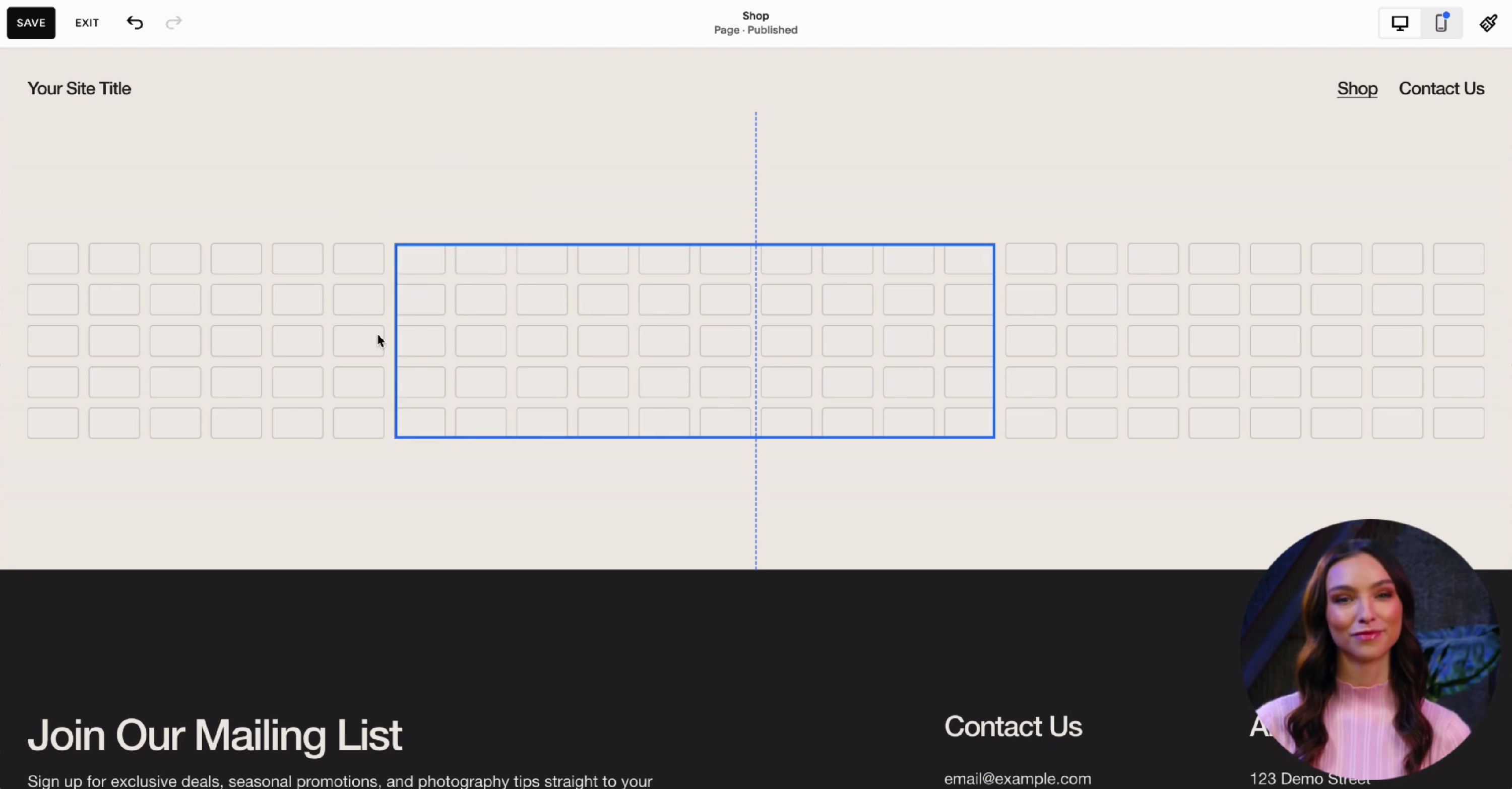
Adjust your block to best your themes layout
-
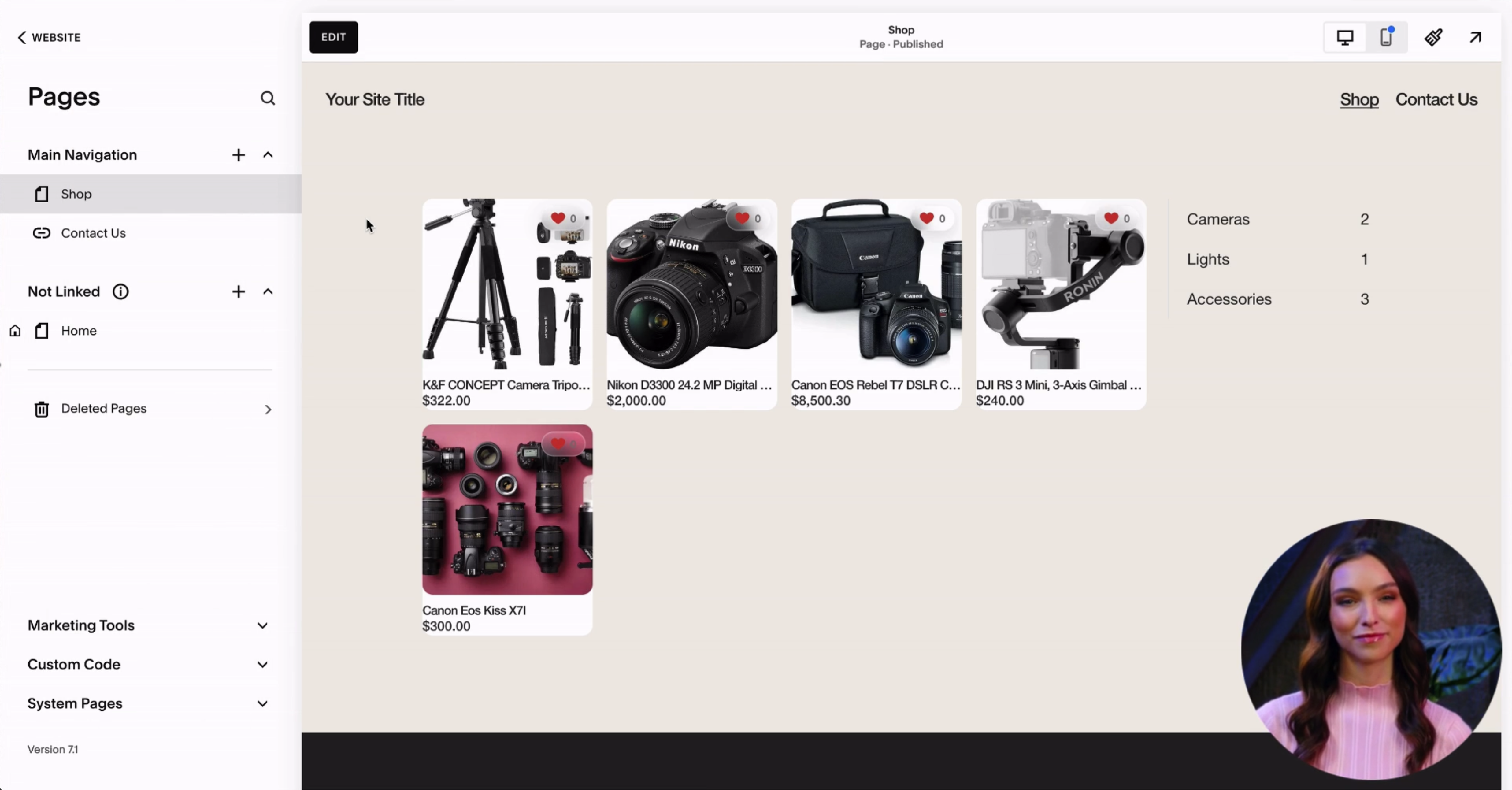
Finally click Save and Exit to Preview your changes. Your listings should appear on the page
Step 5 — Embed360 settings page
- Preview your website and copy your websites shop url

- Navigate back to Embed360 and click on Etsy Embed > Settings
-
Paste your sites url in the Website Shop URL input box. Scroll to the bottom of the page and Save your changes
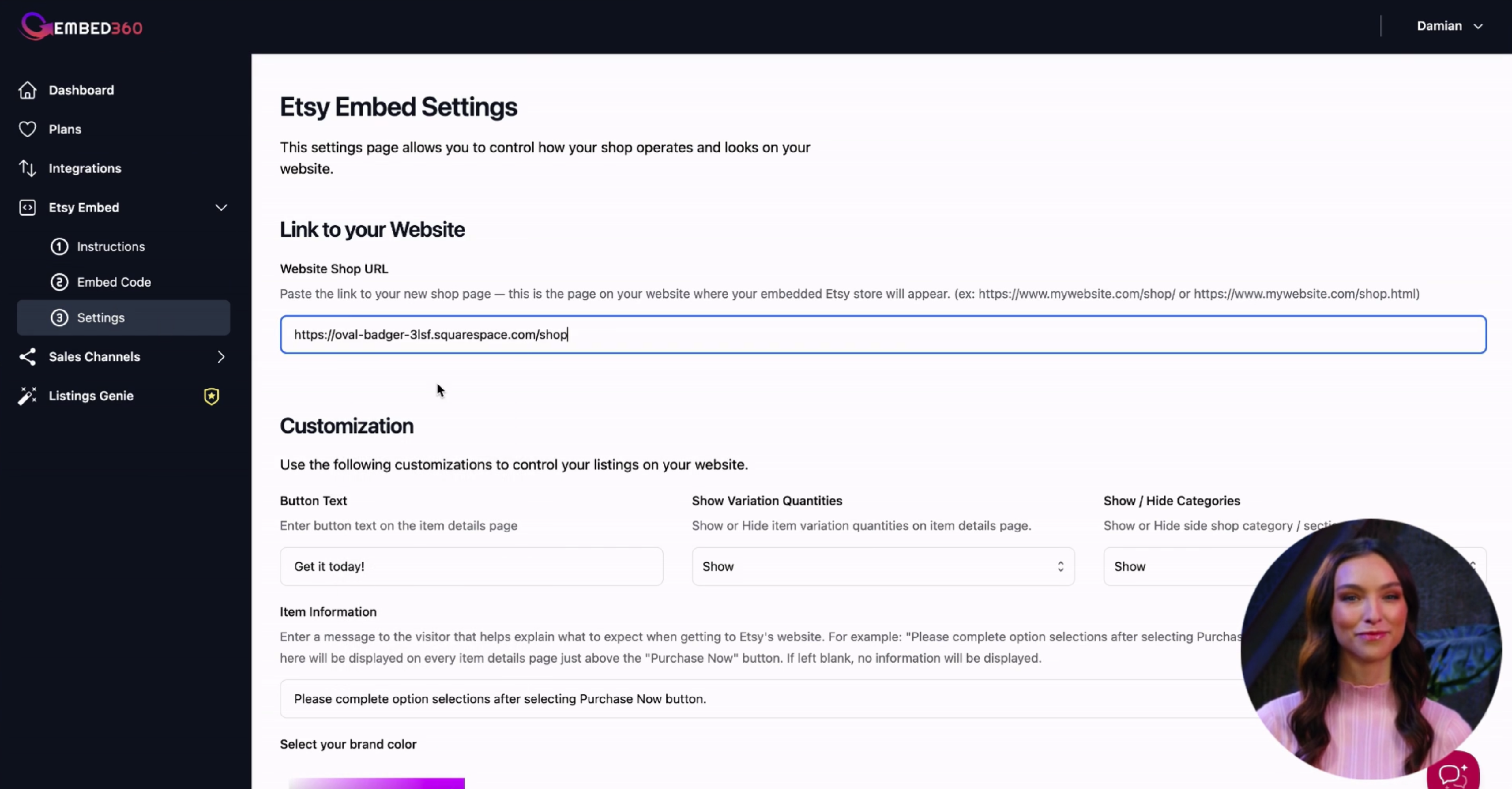
- Make other setting adjustments. Done!
Troubleshooting
- Shop isn’t showing? Use a Code block (not Embed). Make sure the block is set to HTML, then Apply/Save.
- Still seeing old listings? In Embed360, click Re-import Listings, then refresh your Squarespace page.
- Security/plugins: Some third-party security or cookie/banner tools can block scripts. Whitelist Embed360 if needed.
- Caching/CDN: Clear any cache (Squarespace, third-party, or CDN) and hard-refresh your browser.
- Plan limitations: If scripts don’t run, confirm your Squarespace plan supports custom code.
- Multiple embeds: Use separate Code blocks for each embed; avoid nesting inside Markdown blocks.